
DK999 for iOS – How to Play DK999 on iPhone and iPad (2026)
If you’ve searched the App Store for DK999 and come up empty, you’re not doing anything wrong. There is no DK999 app on the App Store, and iPhones can’t install the Android APK. That doesn’t mean iPhone users are left out, though.
DK999 runs in Safari, and with one small trick it sits on your home screen and opens like any other app. This guide shows how to set that up, how deposits and withdrawals work on iPhone, and which “DK999 iOS download” links you should stay away from.
On This Page
- DK999 on iOS: Quick Facts
- Is There a DK999 App for iPhone?
- How to Play DK999 on iPhone
- Register, Login, Deposit and Withdraw
- iPhone vs Android
- Fake DK999 iOS Downloads to Avoid
- DK999 Not Working on iPhone?
- Tips for iPhone and iPad
- DK999 iOS FAQs
DK999 on iOS: Quick Facts
| Details | |
|---|---|
| App Store app | No |
| How to play | Safari (or any browser) |
| Home screen icon | Yes, via Add to Home Screen |
| Works on | iPhone and iPad |
| Deposits and withdrawals | Yes, with JazzCash or Easypaisa |
| Same account as Android | Yes |
Is There a DK999 App for iPhone?
No, not as of October 2026. You won’t find DK999 in the Apple App Store, and there’s no official iPhone download file either.
The reason is simple. Apple only allows real money gaming apps on the App Store in countries where the operator holds the right local licence, and the app has to be submitted and approved through Apple’s review. Apps like DK999 that serve Pakistani players don’t go through that route. On Android, they get around the Play Store by sharing an APK file. iPhones don’t install APK files at all, so that route doesn’t exist on iOS.
So when you see a site offering a “DK999 iOS download”, be careful. In the best case it just sends you to the website anyway. In the worst case, it asks you to install something that can put your phone at risk. More on that further down.
The good news: you don’t actually need an app. The DK999 website does everything the Android app does.
How to Play DK999 on iPhone (Safari Method)
This takes about a minute and works on any iPhone that can run a recent version of Safari.
Step 1: Open the DK999 Website in Safari
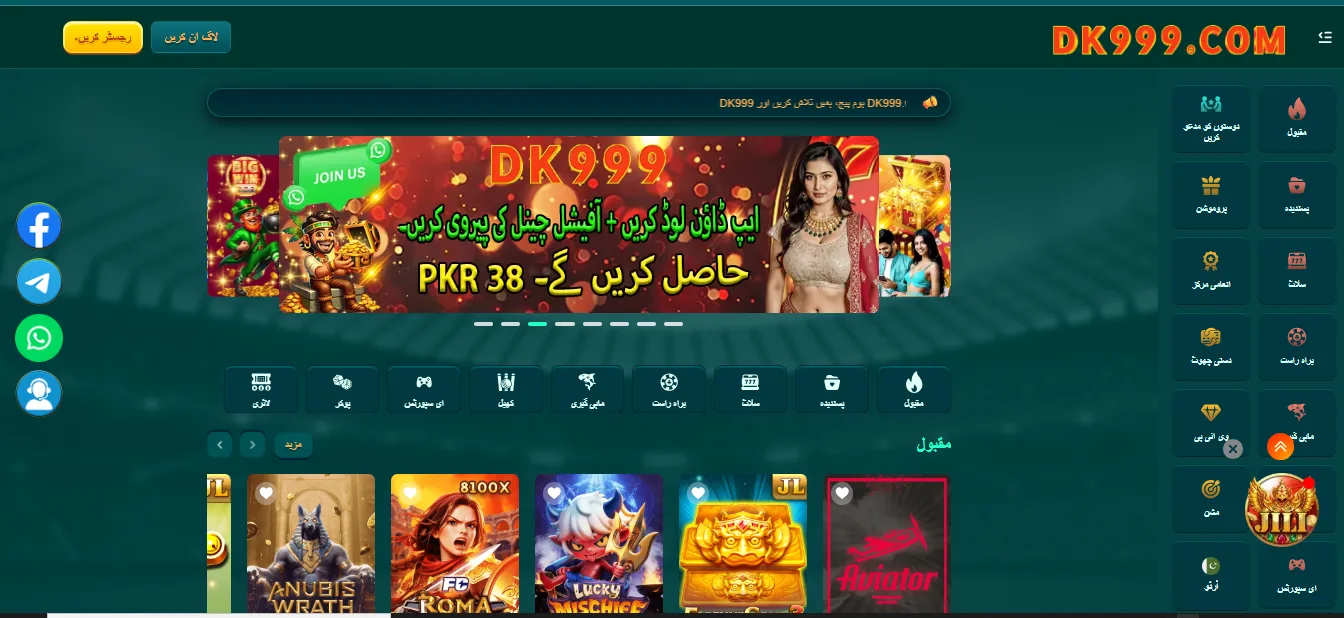
Open Safari and go to the DK999 website. Type the address yourself or use a link you trust, rather than tapping one forwarded in a group. The site will load in its mobile layout, which looks almost the same as the Android app.
Step 2: Log In or Register
Tap Login if you already have an account (from Android or anywhere else). If you’re new, tap Register and sign up with your mobile number. Safari may offer to save your password to iCloud Keychain. On your own phone, that’s handy, because you can then log in with Face ID.
Step 3: Add DK999 to Your Home Screen
This is the part that makes it feel like an app.
- While on the DK999 site, tap the Share button (the square with an arrow pointing up). On iPhone it’s at the bottom of the screen; on iPad it’s at the top.
- Scroll down and tap Add to Home Screen.
- Change the name to “DK999” if you like, then tap Add.
You now have a DK999 icon next to your other apps. Tapping it takes you straight to DK999, and depending on how the site is set up, it may even open full screen without Safari’s address bar, just like a real app.
Using Chrome on iPhone Instead
Chrome works too. Open the site, tap the Share icon in the address bar, then Add to Home Screen. On older iOS versions this option only shows up in Safari, so use Safari if you can’t find it.
Register, Login, Deposit and Withdraw on iPhone
Everything works the same as on Android, just inside the browser. A quick rundown, with links to the full guides:
Register on iPhone
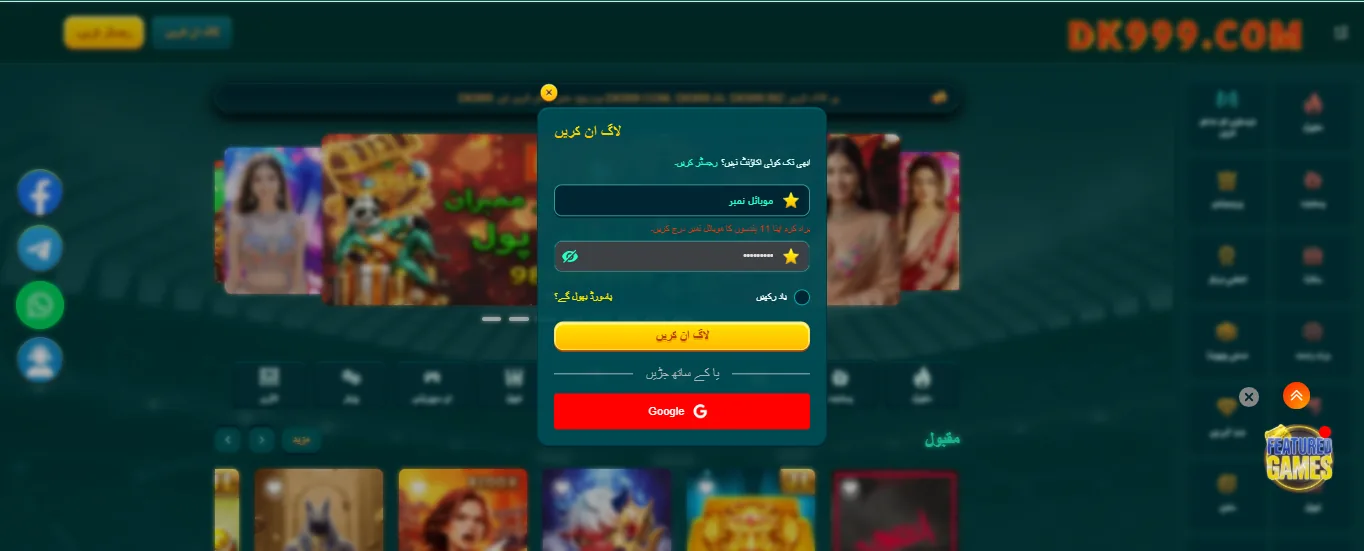
Tap Register on the DK999 site, enter your mobile number, set a password and type in the OTP from your SMS. iPhones often show the code right above the keyboard, so you can tap it instead of typing. Full steps are in our DK999 register guide.
Login on iPhone
Open your home screen icon, tap Login and enter your number without the first 0. If you saved your password in iCloud Keychain, Face ID will fill it in. See the DK999 login guide for password resets and errors.
Deposit on iPhone
Go to Wallet > Deposit on the DK999 site and choose JazzCash or Easypaisa. Then switch to your JazzCash or Easypaisa iPhone app to send the payment. Swiping between apps is quick, but watch the timer on the DK999 deposit screen while you do it. Details are in the DK999 deposit guide.
Withdraw on iPhone
Wallet > Withdraw, pick your wallet, enter the amount and your withdrawal password. The money lands in your JazzCash or Easypaisa app just like it would for an Android user. The DK999 withdrawal guide covers pending and rejected requests.
One account works everywhere, so if you started on an Android phone and moved to an iPhone, just log in. Your balance and history come with you.
DK999 on iPhone vs Android
Here’s how playing on iOS compares with the Android app:
| Feature | iPhone (Safari) | Android (APK) |
|---|---|---|
| Install needed | No, just add to home screen | Yes, APK install |
| Storage used | Very little | Around 10–25 MB plus game data |
| Games available | Same lobby | Same lobby |
| Deposits and withdrawals | Yes | Yes |
| Updates | Automatic, the site is always current | Download new APK or in-app update |
| Login with Face ID | Yes, through iCloud Keychain | Fingerprint on some phones |
| Notifications | Limited | Yes, in-app |
| Speed | Depends on connection; a little slower on heavy games | Slightly quicker on live tables |
For most people the difference is small. One real upside on iPhone is that there’s nothing to update or reinstall. One small downside is that live casino tables can feel slightly heavier in a browser, so a good Wi-Fi or 4G signal helps. On Android, the DK999 APK download page has the install steps.
Fake DK999 iOS Downloads to Avoid
Because there’s no App Store version, some sites fill the gap with “DK999 iPhone app” downloads. These are the ones to walk away from:
“Install This Profile”
Some pages ask you to download a configuration profile and then go to Settings > General > VPN & Device Management to install it. A profile can change your phone’s network settings, add certificates, and in some cases let someone see or redirect your traffic. There is no reason to give that kind of access to a gaming site. If you’ve already installed one, go to that same menu and tap Remove Profile.
“Trust the Developer”
Other sites install an app signed with an enterprise certificate and ask you to trust an unknown developer. Apple meant these certificates for companies’ internal apps. They get revoked often, so the app can stop working overnight, and you have no idea what’s inside it.
IPA Files and “Sideloading” Tools
You might see DK999 IPA files offered with tools that sideload them onto your iPhone. Unless you know exactly where the file came from, skip it. It’s the iPhone version of a random edited APK.
The Safe Rule
If a “DK999 iOS download” asks for anything more than opening a website, close it. The Safari method above gives you the full DK999 experience without handing over control of your phone. Our is DK999 real or fake guide covers the wider scam patterns.
DK999 Not Working on iPhone? Try These Fixes
| Problem | Fix |
|---|---|
| Keeps logging you out | You may be in Private Browsing, which forgets logins. Switch to a normal tab, or use the home screen icon. |
| Page won’t load or stays blank | Switch between Wi-Fi and mobile data, then pull down to refresh. |
| Games freeze or stutter | Close other tabs and apps, and turn off Low Power Mode, which can slow down heavy pages. |
| Old version of the site showing | Go to Settings > Safari > Advanced > Website Data, search for the DK999 site and delete its data, then log in again. |
| “Add to Home Screen” missing | Scroll further down the Share menu, or open the site in Safari instead of another browser. |
| Deposit page won’t open payment | Allow pop-ups for the site: Settings > Safari > turn off Block Pop-ups, then try again. Turn it back on afterwards. |
| OTP code not auto-filling | Type it in manually from the Messages app. |
| Home screen icon opens a blank page | Delete the icon, open the site in Safari, log in, and add it to the home screen again. |
If none of these help, contact DK999 support through live chat on the website and mention you’re on an iPhone, along with your iOS version (Settings > General > About).
Tips for Playing DK999 on iPhone and iPad
- Keep iOS updated. Newer Safari versions handle game pages better and patch security holes.
- Use the home screen icon instead of searching for the site each time. It cuts out the risk of clicking a lookalike link.
- On iPad, turn the screen sideways for live casino and sports. The bigger layout makes tables much easier to follow.
- Turn on Screen Time limits for Safari if you want a daily cap on how long you play.
- Don’t let others use your iPhone while you’re logged in. If you share an iPad with family, log out after each session.
- Keep your JazzCash or Easypaisa app logged in and ready before you start a deposit, so the payment timer doesn’t run out while you’re switching apps.
As on any device, DK999 is a real money game for adults 18 and over. Decide your budget before you play, and treat it as entertainment rather than income. Our responsible gaming guide has tools that make that easier.
DK999 iOS FAQs
Is DK999 available on the App Store?
No. There’s no DK999 app on the Apple App Store. iPhone users play through the website in Safari.
How do I do the DK999 game download on iOS?
There’s nothing to download. Open the DK999 website in Safari, log in, then tap Share > Add to Home Screen to get an app icon.
Can I install the DK999 APK on my iPhone?
No. APK files only work on Android. iPhones can’t open or install them.
Does DK999 work on iPad?
Yes. It works in Safari on iPad the same way, and the larger screen is nice for live casino and sports.
Can I use the same account on iPhone and Android?
Yes. One DK999 account works on any device. Log in with the same number and password.
Can I deposit and withdraw on iPhone?
Yes. Use Wallet on the DK999 site and pay or receive through the JazzCash or Easypaisa iPhone app.
Is it safe to install a DK999 profile on iPhone?
We’d advise against it. Configuration profiles can give a third party a lot of control over your phone. The Safari method doesn’t need one.
Which iPhones support DK999?
Any iPhone running a recent version of iOS with Safari should work. Older models may be slower on live games.
Why does DK999 log me out on iPhone?
Usually because Private Browsing is on, or website data was cleared. Use a normal tab or the home screen icon.
Will there be a DK999 iPhone app in future?
There’s no sign of one right now. If that changes, we’ll update this page.
On Android instead? Head to the DK999 download page for the APK. On a laptop, see the DK999 for PC guide.
More DK999 Guides
Start at the DK999 game hub, or jump to another guide: