
DK999 for PC – How to Play DK999 on Windows Laptop and Desktop (2026)
There’s no official DK999 program for Windows, but that doesn’t stop you from playing on a laptop or desktop. You have two options. The easy one is opening DK999 in your browser. The other is running the Android app on your computer through an emulator like BlueStacks or LDPlayer.
Both are free, and both use the same DK999 account you have on your phone. This guide explains each method, what kind of PC you need, and how to fix the problems people usually hit when setting it up.
On This Page
- DK999 on PC: Quick Facts
- Can You Play DK999 on PC?
- Method 1: Play in Your Browser
- Method 2: Android Emulator
- PC Requirements
- DK999 on Mac
- Register, Login, Deposit and Withdraw on PC
- Problems and Fixes
- Stay Safe on a Computer
- DK999 for PC FAQs
DK999 on PC: Quick Facts
| Details | |
|---|---|
| Official Windows app | No |
| Easiest method | Browser (Chrome or Edge) |
| App method | DK999 APK on an Android emulator |
| Works on | Windows 10, Windows 11, most laptops; Mac via browser |
| Cost | Free |
| Same account as phone | Yes |
Can You Play DK999 on PC?
Yes. You just won’t find a “DK999.exe” to install, and any site offering one should be treated with suspicion. Instead, pick whichever of these suits you:
| Browser Method | Emulator Method | |
|---|---|---|
| What you do | Open the DK999 website | Install BlueStacks or LDPlayer, then the DK999 APK |
| Setup time | Under a minute | 10 to 20 minutes |
| Download size | Nothing | Emulator is several hundred MB, plus the APK |
| PC needed | Almost any laptop | 4 GB RAM or more, virtualization on |
| Looks like | Mobile-style site on a big screen | Exactly the phone app |
| Best for | Most players | People who want the app layout or play long sessions |
If you’re not sure, start with the browser. It’s quicker, uses nothing on your hard drive, and gives you every feature: games, deposits, withdrawals and support.
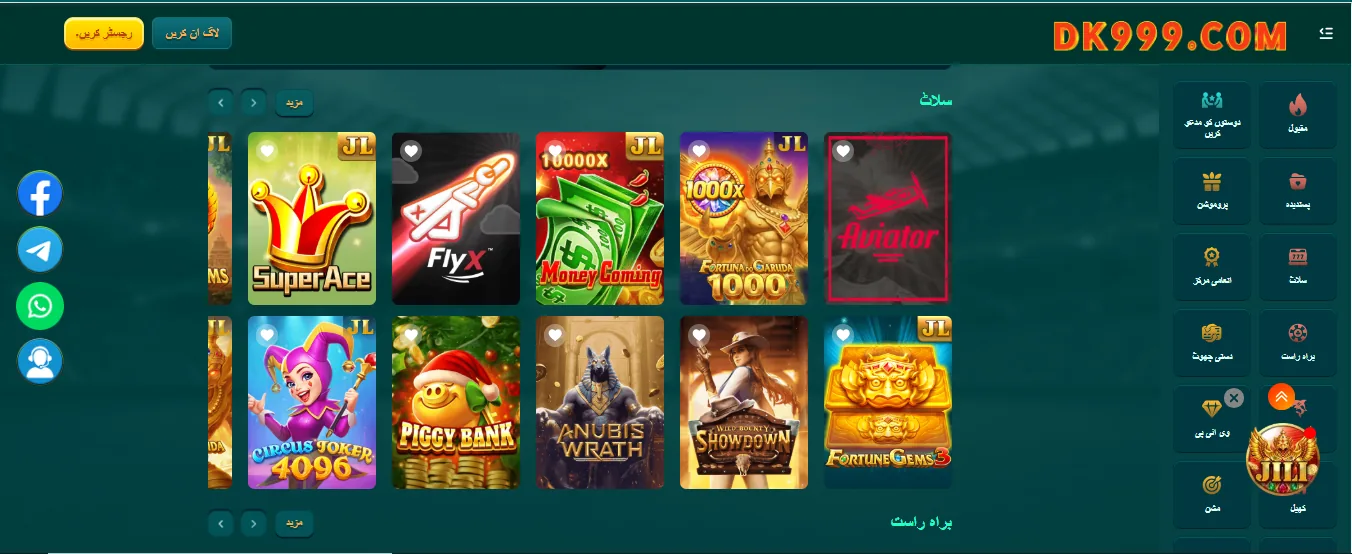
Method 1: Play DK999 in Your PC Browser
This is the simplest way to get DK999 on a laptop.
- Open Google Chrome or Microsoft Edge on your computer.
- Go to the DK999 website. Type the address or use a bookmark you trust, rather than a link from a group chat.
- Click Login and enter your mobile number and password. New here? Click Register instead and keep your phone nearby for the OTP.
- That’s it. Your lobby and balance are the same as on your phone.
Make It Feel Like an App
You can turn the site into a desktop shortcut that opens in its own window:
- In Chrome: click the three dots (top right) > Cast, save and share > Install page as app (or Create shortcut, then tick “Open as window”).
- In Edge: click the three dots > Apps > Install this site as an app.
A DK999 icon appears on your desktop and Start menu. Click it and DK999 opens in a clean window without tabs or an address bar.
Tips for the Browser Method
- Press F11 for full screen on live casino tables.
- Zoom in or out with Ctrl + and Ctrl – if the layout looks too small or too big on a wide monitor.
- Keep your browser updated. Older versions can struggle with game graphics.
Method 2: DK999 PC Download with an Android Emulator
An emulator is a free program that runs Android inside Windows. Once it’s set up, you can install the DK999 APK on it just like on a phone. BlueStacks and LDPlayer are the two most popular choices.
Step 1: Install an Emulator
- Go to the official BlueStacks or LDPlayer website. Download only from the official site, not from file-sharing pages.
- Run the installer and follow the steps. It can take 5 to 15 minutes depending on your internet and PC.
- Open the emulator. You’ll see an Android-style home screen.
Step 2: Get the DK999 APK
On your PC, go to our DK999 download page and download the APK file. It saves to your Windows Downloads folder.
Step 3: Install DK999 in the Emulator
There are two easy ways:
- Drag and drop: drag the DK999 APK file from your Downloads folder onto the emulator window. It installs automatically.
- Install APK button: in BlueStacks, use the Install APK option in the side toolbar. In LDPlayer, click APK on the right-hand bar. Then pick the file.
After a few seconds, the DK999 icon shows up on the emulator’s home screen.
Step 4: Open DK999 and Log In
Click the icon, then log in or register as you would on a phone. Your account, balance and bonuses all carry over.
A Note on Windows Subsystem for Android
You may read older guides suggesting the Windows Subsystem for Android (WSA) on Windows 11. Microsoft has discontinued WSA, so it’s no longer a practical option. Stick with BlueStacks or LDPlayer.
PC Requirements for DK999
The browser method runs on almost anything. The emulator needs a bit more:
| Item | Browser Method | Emulator (Minimum) | Emulator (Smooth) |
|---|---|---|---|
| Windows | Windows 10 or 11 | Windows 10 or 11 | Windows 10 or 11 |
| RAM | 2 GB | 4 GB | 8 GB |
| Processor | Any modern CPU | Intel or AMD dual-core | Intel Core i5 / AMD Ryzen 5 or better |
| Free storage | None | 5 GB | 10 GB (SSD preferred) |
| Virtualization | Not needed | Must be on | Must be on |
| Internet | Stable broadband or 4G hotspot | Same | Same |
These are general figures. Check the BlueStacks or LDPlayer site for their current requirements before installing.
How to Turn On Virtualization
If the emulator says virtualization is off, or runs very slowly, this is usually the fix.
- Open Task Manager (Ctrl + Shift + Esc), go to the Performance tab and click CPU. Look for “Virtualization: Enabled”. If it says Disabled, continue.
- Restart your PC and enter the BIOS/UEFI. The key is usually F2, F10, F12 or Del, depending on your laptop brand (HP, Dell and Lenovo all differ).
- Find the virtualization setting. On Intel machines it’s often called Intel VT-x or Intel Virtualization Technology; on AMD it’s SVM Mode or AMD-V.
- Set it to Enabled, save and exit.
If you’re not comfortable changing BIOS settings, stick with the browser method. It needs none of this.
DK999 on Mac
On a MacBook or iMac, the browser is the way to go. Open Safari or Chrome, visit the DK999 website and log in. In Safari on recent versions of macOS, you can also use File > Add to Dock to create an app-like shortcut.
Android emulators on Mac are more hit and miss. Some, like BlueStacks, have offered a Mac version, but support varies between Intel and Apple silicon (M-series) Macs, and setup is fiddlier than on Windows. For most Mac users it isn’t worth the effort when the website already does everything.
If you also have an iPhone, our DK999 for iOS guide covers the Safari home screen method on phone and iPad.
Register, Login, Deposit and Withdraw on PC
All the account features work on a computer. A few PC-specific notes:
Register and Login on PC
Sign up or log in the usual way. The OTP still comes to your phone by SMS, so keep it next to you. If you’re on a shared family computer, don’t let the browser save your password, and log out when you’re done. Full steps: DK999 register guide and DK999 login guide.
Deposit from PC
Start the deposit on your PC (Wallet > Deposit), then send the payment from the JazzCash or Easypaisa app on your phone. Keep an eye on the timer shown on the deposit screen while you switch devices. Everything else is in the DK999 deposit guide.
Withdraw from PC
Wallet > Withdraw, choose your wallet, enter the amount and your withdrawal password. The money arrives in your JazzCash or Easypaisa account as normal. See the DK999 withdrawal guide if a request gets stuck.
Using Your Phone and PC Together
You can be logged in on your phone and your PC at the same time with the same account. Your balance updates on both. Just don’t share the account with another person, which can get it flagged.
DK999 on PC: Problems and Fixes
| Problem | Fix |
|---|---|
| Emulator very slow or laggy | Turn on virtualization, give the emulator more RAM and CPU cores in its settings, and close heavy programs like Chrome tabs you don’t need. |
| “Virtualization disabled” warning | Enable Intel VT-x or AMD-V in the BIOS (see the requirements section). |
| Emulator won’t start after Windows update | Update the emulator to its latest version. Some Windows features like Hyper-V can clash with older emulator builds. |
| APK won’t install in emulator | Download the APK again; the file may be incomplete. Make sure you’re dragging the .apk file itself, not a zip. |
| DK999 crashes inside emulator | Switch the emulator’s graphics mode (DirectX/OpenGL) in settings and restart it. |
| Website looks stretched or tiny | Use Ctrl + and Ctrl – to zoom, or narrow the browser window. |
| Keeps logging out in browser | Don’t use Incognito/InPrivate mode, and allow cookies for the DK999 site. |
| Games stutter on laptop | Plug in the charger. Many laptops slow down the processor on battery. |
Stay Safe When Playing on a Computer
- Only download BlueStacks or LDPlayer from their official websites. Fake emulator installers are a common way to spread malware.
- Avoid any “DK999 PC version” .exe file. There isn’t an official one.
- On a shared or cyber café PC, never save your password, and log out completely before leaving.
- Keep Windows Defender or your antivirus switched on.
DK999 for PC FAQs
Is there an official DK999 app for Windows?
No. You can play in a browser or run the Android app through an emulator. Avoid sites offering a DK999 .exe.
How do I do the DK999 PC download?
Install an emulator such as BlueStacks or LDPlayer, download the DK999 APK from our download page, and drag it into the emulator window.
Can I play DK999 on a laptop without an emulator?
Yes. Open the DK999 website in Chrome or Edge and log in. No install needed.
Does DK999 work on Windows 10 and Windows 11?
Yes, both work with the browser method and with emulators.
Which emulator is best for DK999?
BlueStacks and LDPlayer are both popular and easy to set up. LDPlayer tends to be lighter on older laptops; BlueStacks has more settings.
Can I play DK999 on a Mac?
Yes, through Safari or Chrome. Emulators on Mac are less reliable, so the browser is the better choice.
Will my phone account work on PC?
Yes. Log in with the same number and password, and your balance and history will be there.
Is it safe to use an emulator for DK999?
It’s safe if you download the emulator from its official site and the DK999 APK from a trusted source.
Can I deposit and withdraw on PC?
Yes. Start the request on your PC and complete the payment or check the money in your JazzCash or Easypaisa app on your phone.
DK999 is a real money game for players 18 and over. Set a budget before you play, on any device — our responsible gaming guide explains how.
More DK999 Guides
Start at the DK999 game hub, or jump to another guide: